Platform · Data inventory
A working record of what personal data you hold, where it sits and who touches it.
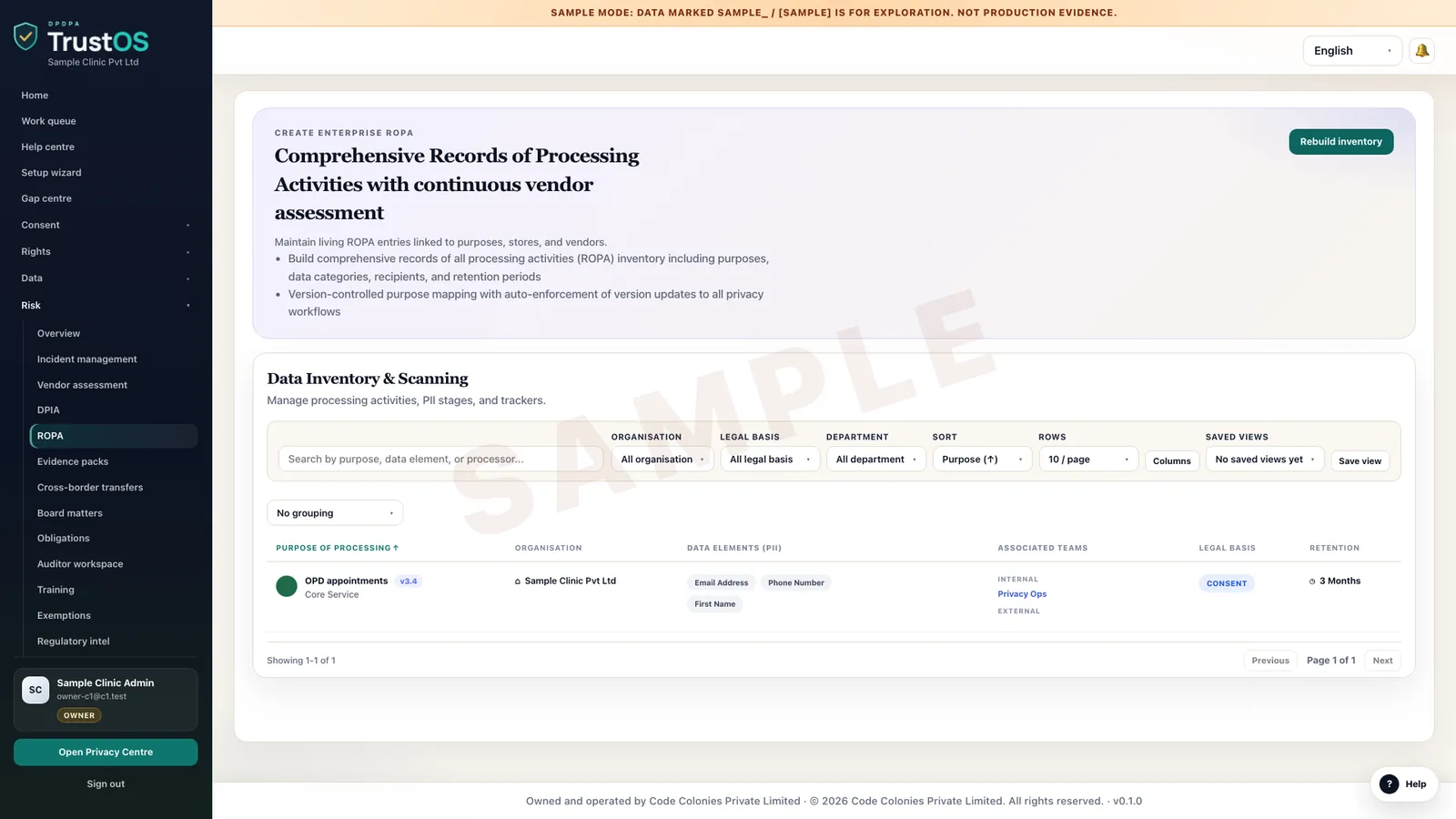
Data inventory records each system that holds personal data, the fields it keeps, the purposes it serves and the vendors who can reach it. Every other module in TrustOS reads from it, so a notice, an erasure task or a breach assessment starts from the same facts.
The problem
Nobody can say where a customer's PAN number lives
An NBFC usually has a loan origination app, a loan management system, a collections dialler, a CRM, a document store for KYC scans and a few spreadsheets on shared drives. The list in the compliance folder was made for an audit two years ago. When a borrower asks what data you hold, or a vendor reports a leak, someone spends a week emailing system owners and still misses the copy of bank statements sitting in the underwriting team's mailbox.
What the DPDP Act asks
The DPDP Act never uses the word inventory. Almost every duty assumes you have one. You cannot give an itemised notice, erase data when its purpose ends, answer an access request or assess a breach without knowing which systems hold which personal data and why. Most of these duties apply from around May 2027 under the Rules as notified, unless amended.
A plain summary. It is not legal advice. Read the DPDP Act guide.
A data map, growing
From systems, to the data in them, to why you hold it
The map is built in three passes: the systems that hold personal data, the categories of data in each, and the purposes each category serves, with an owner for every purpose, shown for an NBFC.
What it does
What data inventory gives your team
System register with named owners
List each application, database, file share and vendor tool that holds personal data. Each entry has a business owner and a technical owner, so questions go to a named person.
Field level data categories
Record the categories each system keeps, such as contact details, Aadhaar reference, bank account, diagnosis or exam scores. Mark the sensitive ones so they carry stricter review later.
Data flows between systems
Show where data moves next: from the loan app to the credit bureau, from the patient app to the lab system, from the CRM to the SMS vendor. A flow without a purpose attached shows up as a gap.
Children and other special groups
Flag systems that hold data of children or of persons with disabilities, so the stricter consent and tracking rules can be checked against them every time.
Owner review cycle
Each system owner confirms or corrects their entry on a schedule you set. Unconfirmed entries are visible, which tells you how far to trust the inventory on a given day.
Discovery from connected systems
Where a connector is in place, TrustOS can search a system for the fields you have recorded and report what it finds. The owner then accepts or rejects each finding.
How the work moves
Step by step, inside TrustOS
- Step 1Start with the main systemsThe privacy lead lists the ten or so systems that matter most, usually the customer app, the core platform, the CRM and the support desk, and assigns an owner to each.
- Step 2Owners fill in what they holdEach owner gets a task to record data categories, sources, storage location and the vendors with access. TrustOS asks for one system at a time, so nobody faces a blank spreadsheet.
- Step 3Link flows and purposesFlows between systems are drawn and each one is tied to a purpose from the purpose register. Anything that moves data without a purpose is raised for review.
- Step 4Privacy reviews and signs offThe privacy lead checks the entries, sends back unclear ones with a comment, and marks the system as reviewed with a date.
- Step 5Keep it currentWhen a new system or vendor is added, the change request creates an inventory task. Owners reconfirm their entries every six months by default.
Records it keeps
The evidence builds as you work
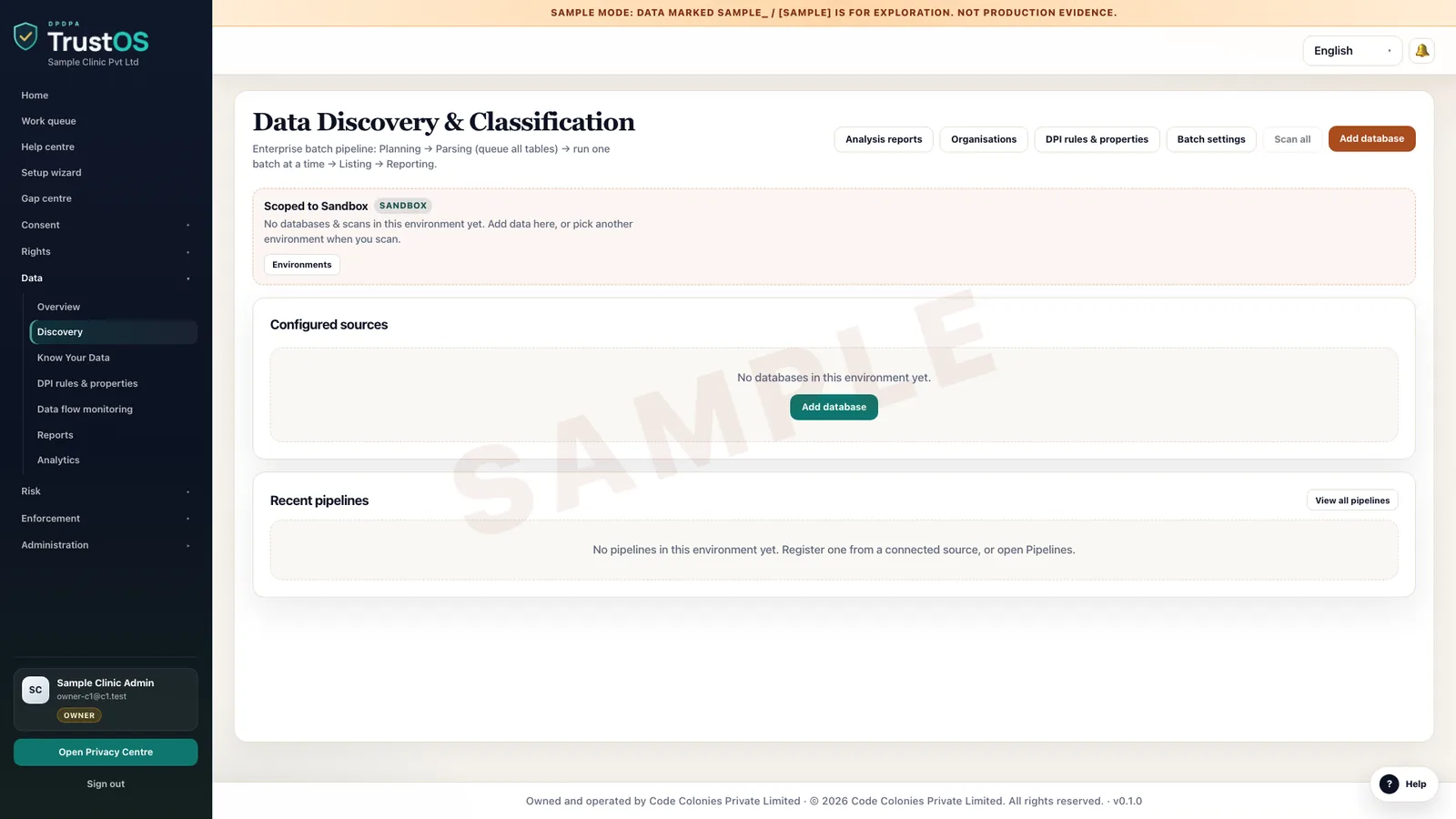
- System register with business and technical owners
- Data categories held per system, with sensitivity marks
- Data flow map between internal systems and vendors
- Storage location and hosting region per system
- Owner confirmations with dates
- Change history of every inventory entry
- Discovery findings and how each was resolved
Who uses it
The teams who rely on it most
The first team usually leads the work. The others act on what it assigns.
Questions
About data inventory
We already have a data map in Excel. Do we start again?
No. Import the sheet, then assign each row to an owner to confirm. Most teams find the old map is a good starting list and that owner confirmation is what was missing.
Does TrustOS scan our systems automatically?
Only systems you connect, and only for what you ask it to look for. Discovery suggests findings; an owner accepts or rejects them. Nothing is added to the inventory without a person agreeing.
How detailed should the first version be?
Start with systems, owners, data categories and purposes. Field level detail can follow for the systems that handle sensitive data, such as KYC stores or patient records.
Keep going
Related modules and reading
Module
Purposes and notices
Decide why you process each kind of data, then tell people in their own language.
Learn moreModule
Retention and erasure
Decide how long each kind of data stays, then make sure it actually goes.
Learn moreModule
Connectors and actions
Find a person's data in your systems, act on it, and record what really happened.
Learn moreSee it with your data
Show us where your personal data lives. We will show you TrustOS running on it.
A 30 minute walkthrough on Google Meet with someone who knows the Act and the product. You leave with a view of your first phase, the owners and the effort.
Or get a rollout proposal in two minutes- Step 1A 30 minute demo on Google MeetWith someone who knows the Act and the product.
- Step 2Your systems and purposesWe walk one product's personal data through TrustOS.
- Step 3A first phase you can planModules, owners and effort, written down for you to keep.